In Nava Certus there are two options for collecting logs:
- Collect Job Data
- Download Logs
1. Collect Job Data
Allows collecting all information needed to troubleshoot issues or just to backup the job. This operation produces a zip file, which contains:
- Job logs
- Job configuration
- Application configuration
- Job internal database
For collecting job data:
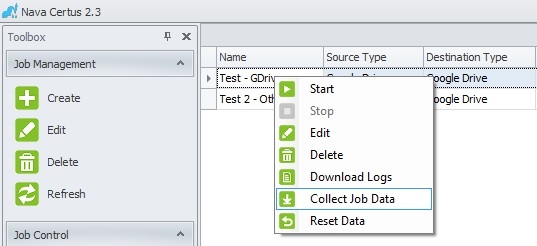
1. Right click on the job to open the context menu, and click on"Collect Job Data".
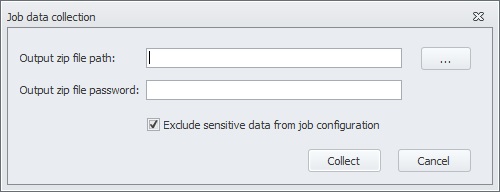
2. On the opened window choose the path where you would like to save the zip file. Logs may contain sensitive information, and thus you may also encrypt the zip file by choosing a password. By clicking on "Collect" button, Nava Certus will create a zip file in destination path.
2. Download logs
Allows collecting logs for the specified job only, without including any additional information.
For downloading logs:
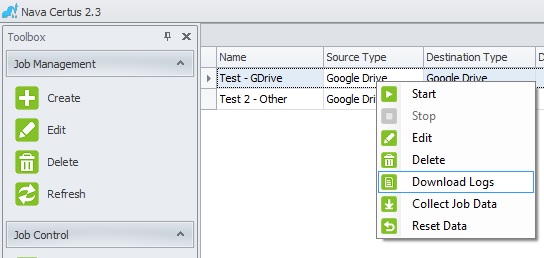
1. Right click on the job to open the context menu, and click on "Download Logs".
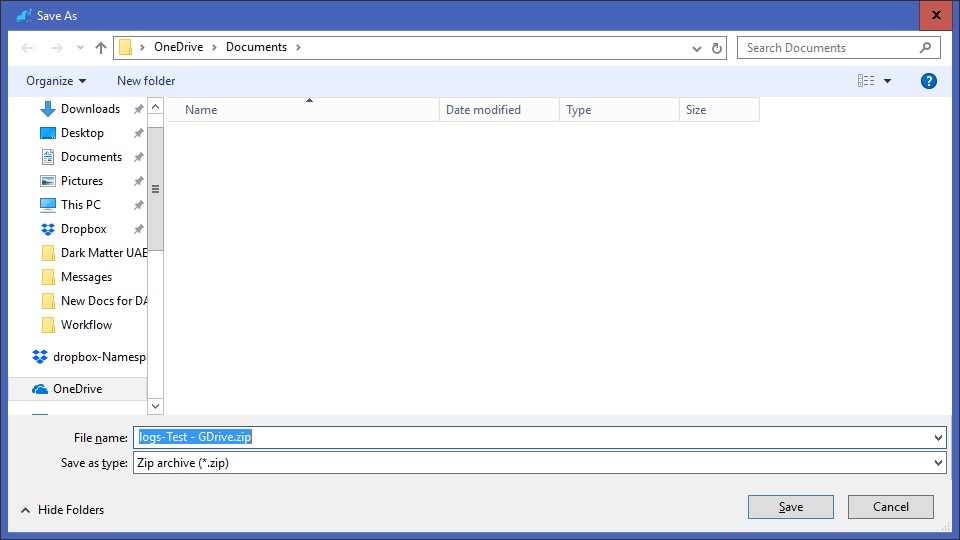
2. You may now choose the destination to save the logs. File name will be the job name by default, but it can be changed if necessary.
0 Comments